Palworld 24/7 Server: Autostart, Crash Restart
Keeping a Palworld server running 24/7 takes three mechanisms: start on boot, come back after a crash, restart daily. What a systemd unit misses.
"Running 24/7" isn't one setting. It's three different mechanisms that fail in three different ways, and leaving any one of them out means the server goes dark in exactly that spot. If the server doesn't exist yet, build it first with the setup guide — this is about keeping one that already runs.
Three things 24/7 actually means
Here is the whole problem in one table: three ways a server stops being up, each stopped by something different.
| What takes it down | What you need | Where it lives |
|---|---|---|
| The machine reboots after a kernel update or a power blip | Start on boot | systemd's enable |
| The process dies — out of memory, or an engine crash | Crash restart | Restart in the unit |
| Nothing died, it just keeps getting heavier | Daily scheduled restart | A timer or cron |
None of the three substitutes for another. Restart=on-failure has nothing to do with booting — that's what enable does. enable won't revive a process that died an hour ago. And neither of them does anything at all while memory slowly fills up, because during that stretch nothing has failed yet.
There's a fourth item that needs a person: finding out. Do all three and you still get the night when all three miss, and then the only question is who notices first, and how long after.
What the systemd unit covers, and what it doesn't
The unit file is the one from the setup guide, plus two lines added to its [Unit] section. These are the lines that matter here:
[Unit]
StartLimitIntervalSec=600
StartLimitBurst=5

[Service]
Restart=on-failure
RestartSec=10

[Install]
WantedBy=multi-user.target
WantedBy=multi-user.target plus sudo systemctl enable palworld is what gives you start on boot. In the guide's enable --now, the --now only means "and start it right now" — if you ever start without enable, the server runs fine today and is simply absent after the next reboot. That failure can't be reasoned about, only tested: pick an hour with nobody on and actually run sudo reboot, then check it came back by itself.
What Restart=on-failure does cover: a non-zero exit code, and death by signal. The kernel killing the process for running the machine out of memory counts as the second one.
What it doesn't cover, three cases:
- A clean exit (code 0). A server brought down through the REST API exits cleanly, so
on-failuredeliberately leaves it alone. Nine times out of ten, "my restart script stopped the server and never started it again" is this. - Alive but not answering. systemd watches a process, not a game. A server that accepts connections while nobody can move is still
activeas far as the unit is concerned. - Repeated failures. The two
StartLimitlines make systemd give up after 5 failed starts within 10 minutes and leave the unit infailed. systemd's own default is 5 within 10 seconds, which a unit that waitsRestartSec=10between tries can never reach — without those lines, a server that dies the same way every time just loops, showingactivating (auto-restart)forever. Whensystemctl status palworldsays "start request repeated too quickly", auto-restart is not broken — it's telling you the server dies the same way every time and the log is where the answer is.
Don't paper over that third case by deleting those lines or setting StartLimitIntervalSec=0. All it buys is a server that can't load a corrupted save retrying every ten seconds forever, while the real reason scrolls thousands of lines out of reach. journalctl -u palworld -n 100 and reading the last failure is always faster.
Why the daily restart isn't optional
A Palworld server's memory only goes up, and Restart=on-failure acts only after the process dies — not during the hours before, when it's alive and everything is just slower — so the scheduled restart is what cuts that stretch off once a day. Why the memory climbs, and how to tell whether once a day is often enough, is in memory leak and scheduled restarts.
And since the server is stopping once a day anyway, that stop is the cheapest place to put the version check: updating a Palworld dedicated server without losing the save covers folding the two together, and what to do on the days the update doesn't go cleanly.
cron is the shortest way to schedule it and that script is in the article above. If you'd rather keep everything in systemd, use a timer:
# /etc/systemd/system/palworld-restart.timer
[Unit]
Description=Restart Palworld daily

[Timer]
OnCalendar=*-*-* 04:00:00

[Install]
WantedBy=timers.target
A palworld-restart.service of the same name (Type=oneshot) calls the actual script, and sudo systemctl enable --now palworld-restart.timer turns it on. systemctl list-timers shows the next run. Don't add Persistent=true. That option catches up a run the machine slept through by firing right after boot, and a server that came up two minutes ago has no reason to restart.
Pick an hour with nobody on, and make sure it isn't the hour a backup runs.
Announce, count down, save, then stop
Killing the process — kill, systemctl kill, the power button — manufactures one crash a day. You lose up to one autosave interval of progress, and on a bad day you catch the server mid-write and get half a Level.sav, which doesn't announce itself until the next start.
A proper stop is four steps: announce → count down → force a save → stop, all of them in the official REST API (enabling it and authenticating is in the REST API guide).
PW='a-long-password'
API='http://127.0.0.1:8212/v1/api'

# put the world on disk first
curl -s -u "admin:$PW" -X POST "$API/save"

# the API does the announcement and the countdown for you
curl -s -u "admin:$PW" -X POST "$API/shutdown" \
     -H 'Content-Type: application/json' \
     -d '{"waittime":60,"message":"Server is going down in 60 seconds"}'
The message isn't a chat line people can scroll past. It lands as a banner across the middle of every screen:
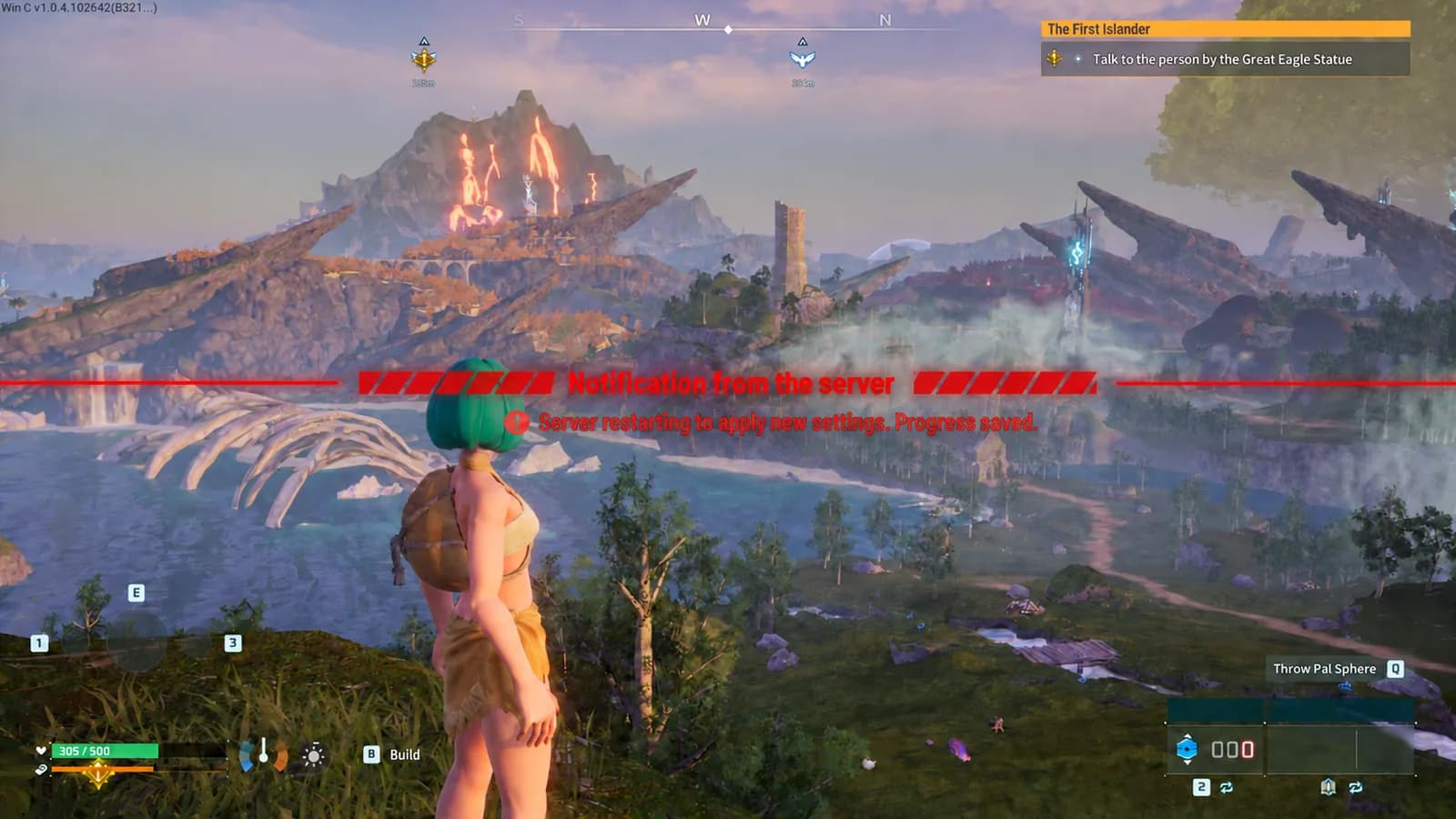
/stop is the immediate one, with no warning — don't build routine operations on it. /shutdown waits the time you give it and then goes down properly.
And here the trap from the previous section closes. A process that went down through /shutdown exited cleanly, so Restart=on-failure will not bring it back. If the goal is a restart, use the API only for the save and the announcement and hand the last line to sudo systemctl restart palworld. If the goal really is a stop — maintenance, moving house — /shutdown alone is right. Mixing the two up is the single most common reason a server goes down at 4am and never comes back.
How you find out it went down
The default monitoring is "a player tells you", and that alert arrives as five people waiting on a Friday night. Three cheaper options:
One line of status. systemctl is-active palworld prints active or failed and nothing else. For the reason, pull today's exits out of the journal:
systemctl is-active palworld
journalctl -u palworld --since today | grep -i "main process exited"
The port. The game port is UDP 8211, so you can't check it by opening a browser. ss -lunp | grep 8211 tells you whether anything is actually listening.
A one-minute heartbeat. A local cron polls /metrics every minute and, when that fails, sends one line somewhere you actually look. cron doesn't see the PW you set in your shell, so the password lives in a small script and the crontab line only calls it:
#!/bin/bash
# /home/palserver/heartbeat.sh — cron runs this every minute
PW='a-long-password'
curl -sf -m 10 -u "admin:$PW" http://127.0.0.1:8212/v1/api/metrics >/dev/null || /home/palserver/alert.sh
-m 10 makes a server that's up but not answering count as down too. The script holds the admin password, so chmod 700 /home/palserver/heartbeat.sh before you put it in cron:
* * * * * /home/palserver/heartbeat.sh
What you should not do is open 8212 to the internet so an external uptime service can poll it. The developers were explicit that this port isn't built to face the internet, and the trade is monitoring in exchange for handing over full admin of the server. Keep the heartbeat inside the machine and let only the notification out.
Two hard limits on a machine at home
Power. One outage is one kill -9, with a chance of landing mid-save. A UPS buys minutes, and minutes are only useful if something spends them shutting down in order — which means wiring the UPS monitoring daemon to call the stop script above when it sees the power go out. Whether the machine turns itself back on when the power returns isn't an OS setting either; it's the power-restore option in the BIOS. Like the reboot test, this one only counts if you actually pull the plug once.
A dynamic IP. Residential connections change their public address without warning, and the moment it changes every address:port your friends saved is a dead address. DDNS can keep a hostname pointed at the right place, but what the Palworld client stores is the string that was typed, so everyone still re-enters it once. Stack router reboots, upstream bandwidth and carrier-side address sharing on top and the diagnosis gets long — the order to work through it is in connection troubleshooting.
Neither of these is a configuration problem you can out-configure. A home machine will happily hold a server up for a few days; holding one up unattended for months is where power and the line keep getting in the way.
Common questions
How do I keep a Palworld server running 24/7?
Set up three things separately: enable the systemd unit so it starts on boot, put Restart=on-failure in the unit so a crash brings it back, and schedule one restart a day with a timer or cron. Each one covers a different failure — with only one of them in place, the other two situations still leave the server down.
Can a Palworld server restart itself after a crash?
Yes. Restart=on-failure with RestartSec=10 in the unit's [Service] section brings it back ten seconds after a crash or an out-of-memory kill. Add StartLimitIntervalSec=600 and StartLimitBurst=5 to [Unit] as well, so a server that fails the same way every time stops after 5 tries in 10 minutes instead of looping forever. It buys time rather than fixing anything, though: if it's firing several times a day, the thing to investigate is memory, not the restart policy.
My auto restart is set up but the server didn't come back. What do I check?
Start with systemctl status palworld. "Start request repeated too quickly" means the server failed 5 times within 10 minutes and systemd stopped trying; the real cause is in the log. Once it's fixed, sudo systemctl reset-failed palworld clears the count so it can start again. A status stuck on activating (auto-restart) means the StartLimit lines are missing and it's looping. A quiet inactive with no error usually means the server exited cleanly, which on-failure is designed to ignore — change the last line of your script to systemctl restart.
Can I run a Palworld server 24/7 on a home PC?
For a few days, yes. Over months, power outages and a dynamic IP are what stop it: an outage is an unannounced kill that can corrupt a save, and a changed public address invalidates the connection details everyone saved. Neither is fixable in config, so a permanent server wants a machine whose power and network someone else keeps up.
Where the three land on hosting
Map the three onto a hosted server and they come out like this.
Start on boot stops being a step at all — the machine and the game process are handed over together, so there's no enable to forget. A crashed process is brought back automatically. And Daily scheduled restart sits in the server's detail page under My servers in the Console as a switch and a time field; set it to a quiet hour and there's no timer file and no Persistent to reason about.
What happens just before that restart is the sequence written by hand above: an in-game server announcement first, then a countdown, then a forced save, and only then does it go down. The fourth item — noticing — is on the same page: frame rate and player count are recorded every minute, and the stretch where the server was stopped shows up as a gap in the line, so "what happened at 3am" is something you look at rather than grep for.
That's where these controls sit on a dedicated Palworld server from KeepWorlds. If you build your own instead, the checklist is identical: one enable, one Restart line, one timer, and one way to find out. Cover those four and you're out of the category of outage where nobody knows why it's down.
And if the question turns out to be the opposite one — whether the world should be running at all while nobody is on it — that's auto pause, and what it actually costs.
Read this in another language
Rather not run it yourself?
Pick a game and a plan, and your server launches on a machine of its own. Backups, game updates and expiry reminders are on us.
See Plans