Palworld Dedicated Server Setup Guide: Linux and Windows
Set up a Palworld dedicated server on Linux or Windows: hardware, SteamCMD, ports, the settings you must set, saves, updates and the daily restart.
If you want to keep playing Palworld with the same group over weeks rather than one evening, you need a dedicated server: nobody has to keep the game open, the world stays up around the clock, and your bases and Pals keep working while you're offline. This guide walks the whole thing — sizing the machine, installing the server on Linux or Windows, opening the right ports, the settings you have to set, keeping your saves, keeping up with patches, and the daily restart that keeps memory in check — then does the math on running it yourself versus having it hosted.
Pick the right multiplayer mode first
Palworld has two multiplayer routes — an invite code, where the host opens their own world to friends, and a dedicated server — and only the dedicated server keeps the world running after the host quits or seats more than four. What each route costs, and the point at which a dedicated server becomes the only workable answer, is in Palworld: Invite Code vs Dedicated Server. Already playing a co-op world you want to bring over? The world moves, but the host's character doesn't — the co-op to dedicated server save converter fixes that part in your browser.
The dedicated route is the Join Multiplayer Game (Dedicated Server) option on the title screen — the part in parentheses matters, because the invite-code path can't reach a dedicated server at all — and its single address field takes the address and port together, like 203.0.113.10:8211. Where you put the machine is what sets everyone's ping: picking a region, and telling latency apart from the other kinds of lag.
How much machine you need
The Palworld server wants memory far more than cores, and 1.0 raised the bar over Early Access: for a machine you set up yourself, the official requirements list 16 GB of RAM and recommend 32 GB or more. What weighs a world down is how many bases and Pals have piled up in it, not the player count, so when it turns choppy with only a few people on, check memory first — and if a restart fixes it for a few days, it's memory built up over uptime, covered below. Favor single-core speed over core count, put it on an SSD, and run Ubuntu 22.04 / Debian 12 or Windows 10/11 / Windows Server; both paths are below. What drives memory and CPU, and how to tell which resource ran out once things get slow, is in Palworld 1.0 Server Requirements: RAM and CPU.
Running it yourself on Linux, from SteamCMD to your first login
The terminal screenshots in this section are from a real install on a fresh Ubuntu 24.04 server in October 2026.
Install SteamCMD and dependencies
The server needs 32-bit libraries, so enable the i386 architecture on Debian-family systems:
sudo dpkg --add-architecture i386
sudo apt update
sudo apt install -y steamcmd lib32gcc-s1 xdg-user-dirs
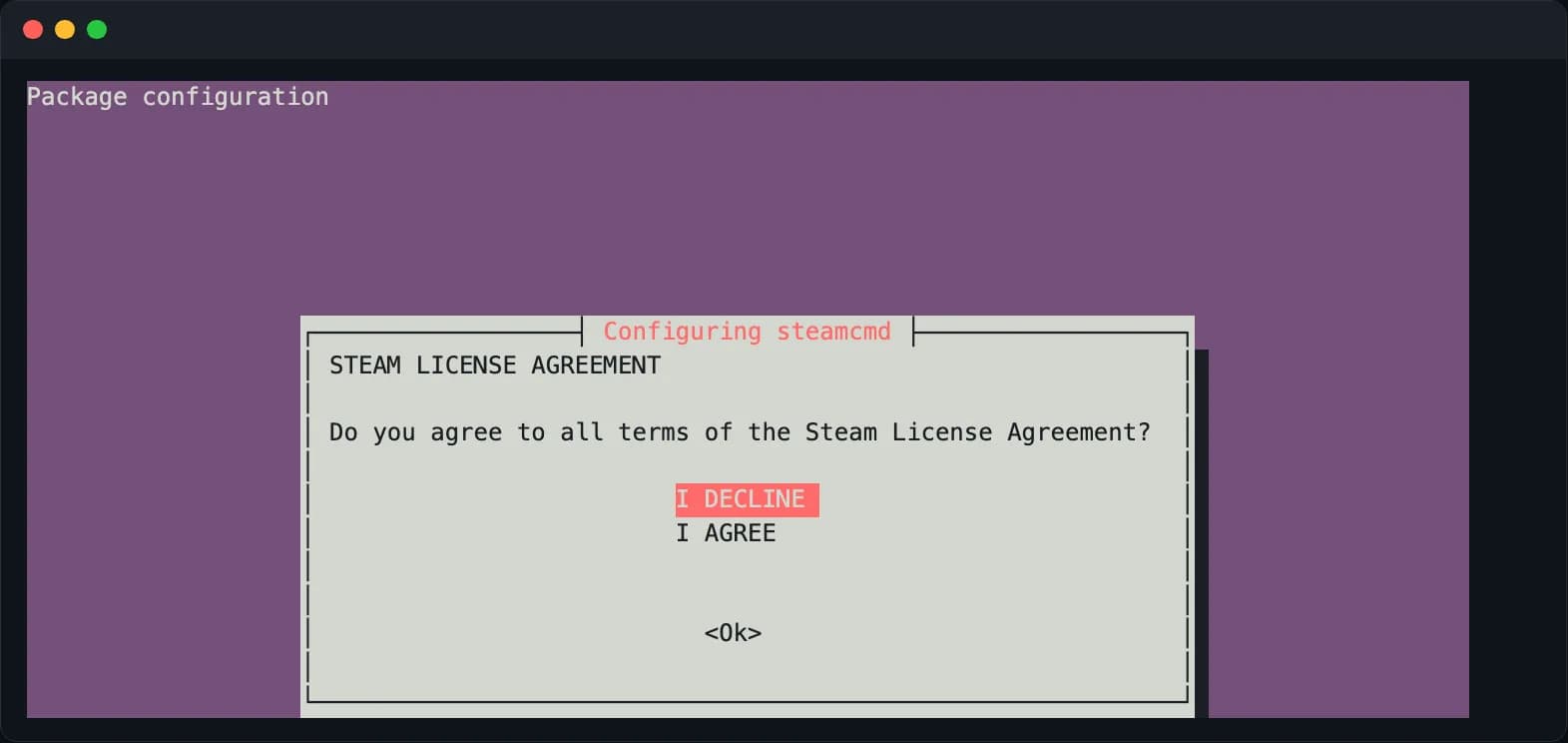
-y doesn't get you past the Steam license: partway through, the install stops on the license text (press Tab to reach <Ok>, then Enter), followed by a two-way choice that starts on I DECLINE. Move to I AGREE with the arrow keys and press Enter — declining leaves steamcmd uninstalled.
Run it as its own unprivileged user rather than root:
sudo useradd -m -s /bin/bash palserver
sudo -iu palserver
Download the server
The dedicated server's App ID is 2394010 (the same one the official deployment guide uses) — note that it is not the game's own ID (1623730):
/usr/games/steamcmd +force_install_dir ~/palworld \
         +login anonymous \
         +app_update 2394010 validate \
         +quit

The full path is deliberate: on Ubuntu, the shell you get from sudo -iu palserver doesn't have /usr/games — where steamcmd lives — on its PATH, so a bare steamcmd fails with command not found (tested on Ubuntu 24.04).
Anonymous login is all you need. The server doesn't use your Steam account and doesn't consume your copy of the game — but everyone connecting still needs to own Palworld on their platform. The download is about 4.9 GB and takes about 4.6 GB once installed (v1.0.5, measured October 2026), so it's done in a few minutes.
Start it once to generate the config
cd ~/palworld
./PalServer.sh
Once Running Palworld dedicated server on :8211 appears in the log, press Ctrl+C. The only point of this first run is to let the server lay down its default files. A few [S_API FAIL] Tried to access Steam interface ... lines along the way are normal.
![First run of PalServer.sh: the [S_API FAIL] lines are harmless, and Running Palworld dedicated server on :8211 means it is up](/_next/image?url=%2Fblog%2Fshared%2Fpalworld-server-first-run.webp&w=3840&q=75)
You don't need to copy steamclient.so by hand anymore: the current PalServer.sh puts it in place itself on startup (the log shows The file has been successfully copied).
Set what the server needs
The file that actually takes effect is here:
~/palworld/Pal/Saved/Config/LinuxServer/PalWorldSettings.ini
The one generated on first run is an empty shell — copy the defaults over it before editing:
cp ~/palworld/DefaultPalWorldSettings.ini \
   ~/palworld/Pal/Saved/Config/LinuxServer/PalWorldSettings.ini
The format catches people out: every option lives on one single line inside OptionSettings=(...), comma-separated, no line breaks, and string values need double quotes. Keep a copy before you start editing, and stop the server before you edit — a running server overwrites the file with the old settings from memory on its next save or exit.
The ones you have to set:
| Option | What it does |
|---|---|
ServerName | The name players see in the list |
ServerPassword | Server password; leave it empty and anyone can walk in |
AdminPassword | Set this. Without it, admin commands are open to anyone; it is also the REST management API password |
ServerPlayerMaxNum | Player cap — don't set it past what the machine can carry — see why 32 is not always 32 |
PublicPort | The public port, 8211 by default |
bIsUseBackupSaveData | The server's own save backups; leave it True |
Two options in the same file are best left alone: bIsMultiplay stays False on a dedicated server — that flag is for co-op hosting — and AutoSaveSpan is in seconds, so widen it to 60 only if a slow disk causes rhythmic hitching, and no further.
Save, start the server again, and the settings are live.
Gameplay options — XP rate, death penalty, base raids, egg hatching — are a choice for your group rather than a setup step, so settle them before anyone joins. What each of the forty-odd options does, and the values we'd start from, is in Palworld server settings, every option explained; if you'd rather not edit that single line by hand, the server settings generator builds the file for you to paste in.
Open the ports
Skipping this looks like "the server log is perfectly happy and nobody can connect." It's the single most common sticking point.
| Port | Protocol | Purpose | Required |
|---|---|---|---|
| 8211 | UDP | Game traffic | Yes |
| 8212 | TCP | Official REST management API | Optional, and localhost only |
Older guides also have you open 27015/UDP, the Steam query port. The official documentation doesn't list it, and in our testing a crossplay server launched with -publiclobby and only 8211/UDP open still appeared in the community list, and Xbox and PS5 players could join.
Two mistakes account for most of it:
- 8211 is UDP, not TCP. Open only TCP and a port scanner will cheerfully report it open while the game still can't connect.
- On a VPS you must open both the provider's firewall (often called a security group) and the host firewall (
ufw/firewalld). Traffic only flows when both allow it.
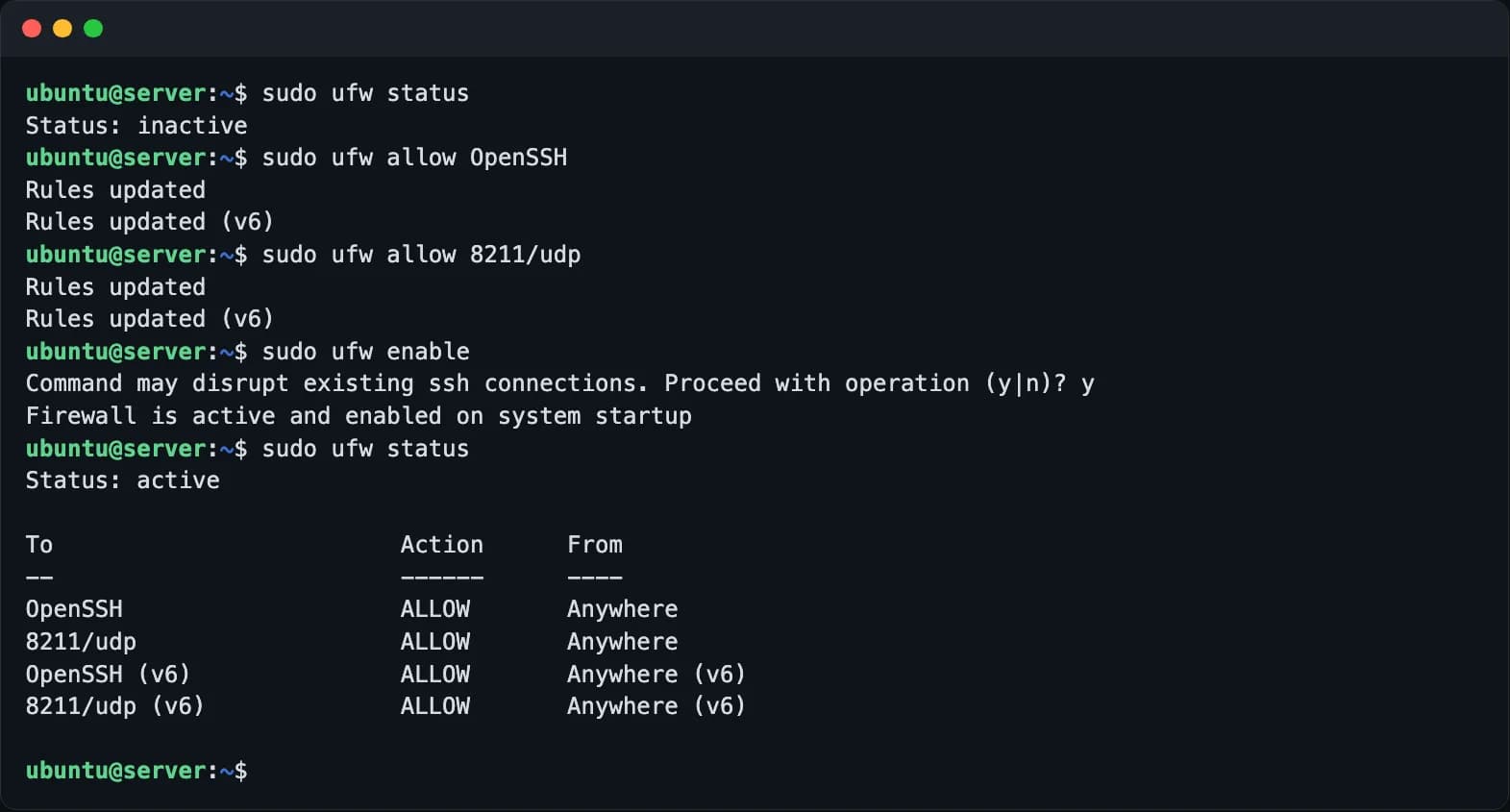
One hard warning about the management API: the Palworld developers explicitly say the REST API should not be exposed directly to the internet. Bind it to a private address or restrict the source with a firewall. Also note that Palworld's RCON is deprecated and the developers have announced it will stop working — if a guide is still walking you through RCON, it's out of date. Enabling the API and using it to kick, ban and force saves — kicks and bans act on the player's userId, not their display name — is covered in the REST API guide.
If the ports are open and nobody can get in, the cause is usually somewhere else — the checklist sorted by how often each thing actually fails is Palworld Server Won't Connect? Fixes in Order.
Start it on boot
A server launched by hand dies with the terminal. Give it a systemd unit:
[Unit]
Description=Palworld Dedicated Server
After=network-online.target

[Service]
Type=simple
User=palserver
WorkingDirectory=/home/palserver/palworld
ExecStart=/home/palserver/palworld/PalServer.sh
Restart=on-failure
RestartSec=10

[Install]
WantedBy=multi-user.target
If anyone in the group plays on Xbox or PS5, append -publiclobby to ExecStart — the reason is in the crossplay guide.
Save it as /etc/systemd/system/palworld.service, then:
sudo systemctl daemon-reload
sudo systemctl enable --now palworld
sudo journalctl -u palworld -f
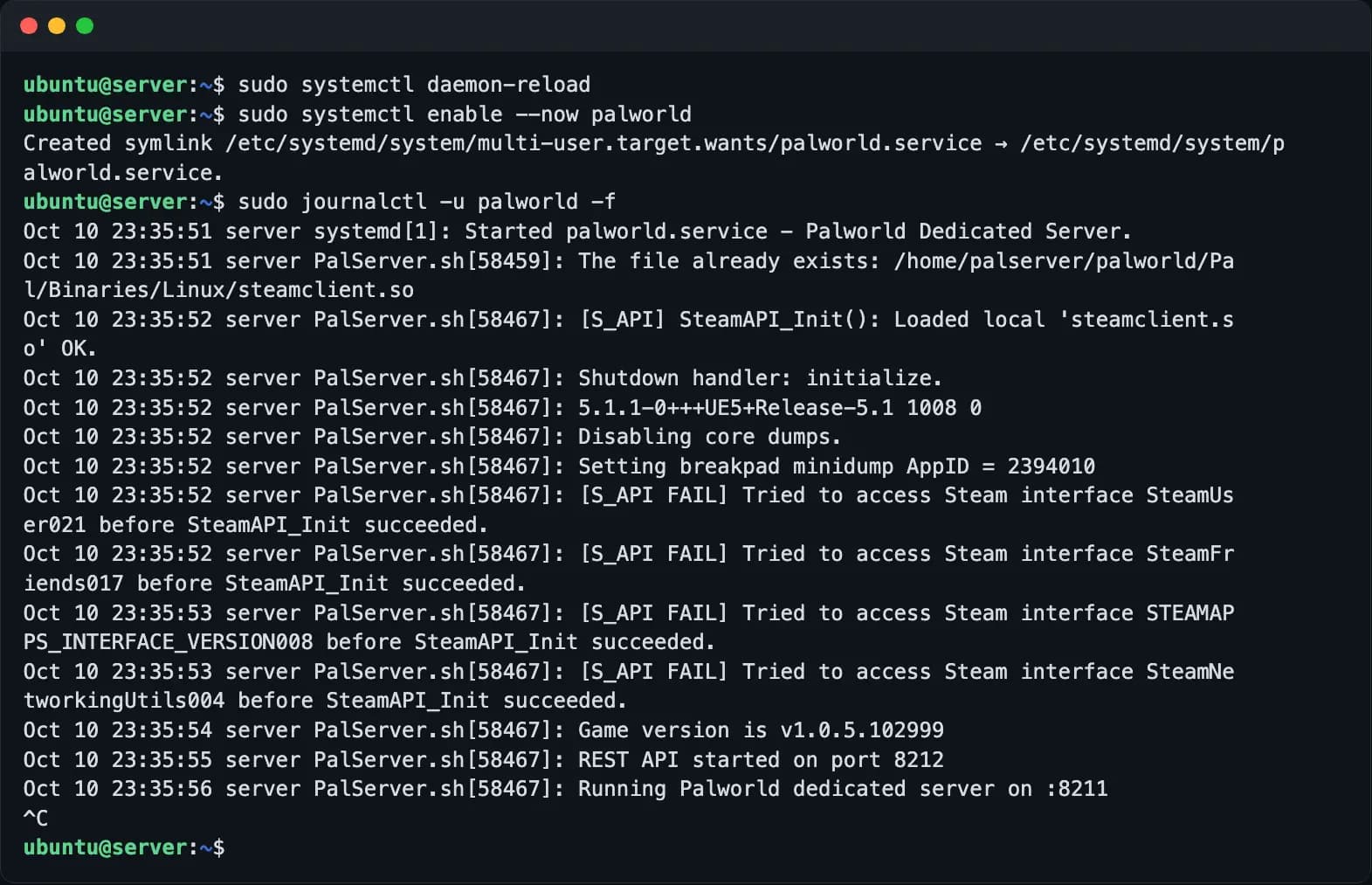
Restart=on-failure brings it back after a crash. It does nothing about memory slowly filling up — that's what the scheduled restart below is for.
Running it yourself on Windows
The steps map one-to-one onto the Linux ones; only the paths and tools differ.
Install SteamCMD and the server. Download SteamCMD from Valve, unzip it to C:\steamcmd, double-click steamcmd.exe once to let it update itself, then in a command prompt:
C:\steamcmd\steamcmd.exe +force_install_dir C:\palworld-server +login anonymous +app_update 2394010 validate +quit
Double-click C:\palworld-server\PalServer.exe once to generate the config, then close it. Have the Microsoft Visual C++ redistributable installed first; without it the server won't start.
Where the config lives. The file that takes effect:
C:\palworld-server\Pal\Saved\Config\WindowsServer\PalWorldSettings.ini
Same drill: copy the contents of DefaultPalWorldSettings.ini into it before editing, and the same single-line pitfalls apply.
Firewall. From an elevated PowerShell, allow the game port:
New-NetFirewallRule -DisplayName "Palworld Game" -Direction Inbound -Protocol UDP -LocalPort 8211 -Action Allow
On a VPS, open it in the provider's firewall as well.
Starting and autostart. Launch it directly:
C:\palworld-server\PalServer.exe
Older guides add -useperfthreads -NoAsyncLoadingThread -UseMultithreadForDS on both systems. The official launch-argument reference now notes that on v1.0 and later, leaving those three unset may improve performance.
For start-on-boot, create a Task Scheduler task triggered "At startup" that runs that command, or register it as a Windows service with a tool like NSSM.
Where your saves are, and how to back them up
Save path (on Windows, substitute the install directory for ~/palworld):
~/palworld/Pal/Saved/SaveGames/0/<WorldID>/
<WorldID> is a hexadecimal directory name, one per world. Backing up means copying that whole directory, Players/ included.
Don't copy a save while the server is writing to it. You can walk away with a half-written file, and you'll only find out on the day you try to restore it. The right order is to make the server flush first — stop it, or trigger a forced save through the REST API with POST /v1/api/save — and copy afterwards.
A backup routine that actually holds up:
- One a day, keep seven
- One extra by hand before every game update
- Not on the same disk as the server
Losing a save is the one failure on this kind of server you can't undo. Dated directories and a history you can roll back to are worth more than any tuning.
What a complete backup has to contain and the order to restore in: Palworld Save Location, Backup and Restore.
When the move itself is the point — a bigger machine, or one closer to the group — the whole procedure in order, including what your players have to re-enter, is moving a Palworld server to another host.
Don't let it run forever: the scheduled restart
Memory on a Palworld server climbs while people play — explored areas, plus the bases, working Pals and dropped items that stay simulated after everyone logs off — and a restart puts it back on the floor. On a busy server we run that restarts once a day, the daily peak stayed between 3.3 and 4.5 GB over ten days; what it would do with no restart at all is something to measure on your own world, not assume. Either way the cheap habit is a graceful restart on a schedule: announce, save, stop and start through the REST API, at an hour nobody is on. How often, the settings that change how much it holds, a script you can use as-is, and the other two mechanisms that keep a server up around the clock are in keeping a Palworld server running 24/7. If what you're hearing is just "the server lags", check whether a restart fixes it, or whether it's the network or a machine that's too small, before you touch anything: server lag: find the cause first.
Nobody can get in after a game update
The Palworld client updates itself; your server does not, so the day a patch ships a server left on the old build is the number-one cause of "suddenly nobody can join." The fix is the same SteamCMD app_update 2394010 validate command you installed with, in this order: stop the server, back up the save, update, start — never update before the backup. Announcing it before you pull the plug, folding the version check into the daily restart, and what to do when the world won't load on the new build are in updating a Palworld dedicated server without losing the save.
Common questions
The server list and direct connect are separate problems
Missing from the community list doesn't stop anyone joining by address, so send your group the address and have them connect directly. Xbox and PS5 players are the exception — the list is their only way in, so they need -publiclobby in the launch arguments and a ServerName they can search for. The rest of the checklist is in can't connect, fixes in order.
Config edits that silently do nothing
Usually the wrong file — DefaultPalWorldSettings.ini is a template the server never reads — or an edit made while the server was running, which writes the old values back over yours. All four causes, and how to tell them apart, are in every option explained.
Is Windows or Linux better for a Palworld server?
Either. The server is the same build on both. Linux is a little lighter on memory and makes autostart and scheduled restarts easier with systemd and cron; Windows lets you get by without a terminal. Use whichever machine you have — don't switch OS for this.
Running it yourself or handing it off
The cost of the DIY route isn't day one. It's every week after that:
| Yourself | Hosted | |
|---|---|---|
| First launch | 30 minutes to two hours | A few minutes |
| Game updates | Stop, update, restart by hand | Flagged for you, one click to update (backup first) |
| Daily backups | Your script, and your job to prove it restores | Automatic, restorable |
| Memory creeping up | Your own restart script | One switch in the Console |
| It dies at 2am | You get up | Restarts on its own |
| Changing world settings | Edit the ini, restart | A web form; restarts itself |
The test is simple: are you willing to spend two hours a week on it? If you are, the DIY route is entirely workable and the steps above are enough to get there. If you aren't, those two hours are exactly what a hosting service is selling. What the machine, the power and those hours add up to with your own numbers is in what a Palworld server actually costs.
Which one is then the next question, and a ranked list won't settle it. The things worth asking before you pay, and the checks you can run yourself once the server is up, are in how to choose Palworld server hosting.
That second column is what KeepWorlds does. Pick a game and a plan and the server launches on a machine of its own — not shared with anyone else — with backups, the daily scheduled restart and expiry reminders handled for you, and new game builds flagged automatically so updating is one click with a backup first. Once it's up, Console → My servers shows the server address, who's online and the current status; copy the address in one click and follow the walkthrough on the page to connect.
- Palworld server hosting — plans, regions and what's included
- Connection guide and FAQ
If it turns out not to fit once it's running, there's a refund policy for that. For anything else, the support links on every page reach us.
Read this in another language
Rather not run it yourself?
Pick a game and a plan, and your server launches on a machine of its own. Backups, game updates and expiry reminders are on us.
See Plans